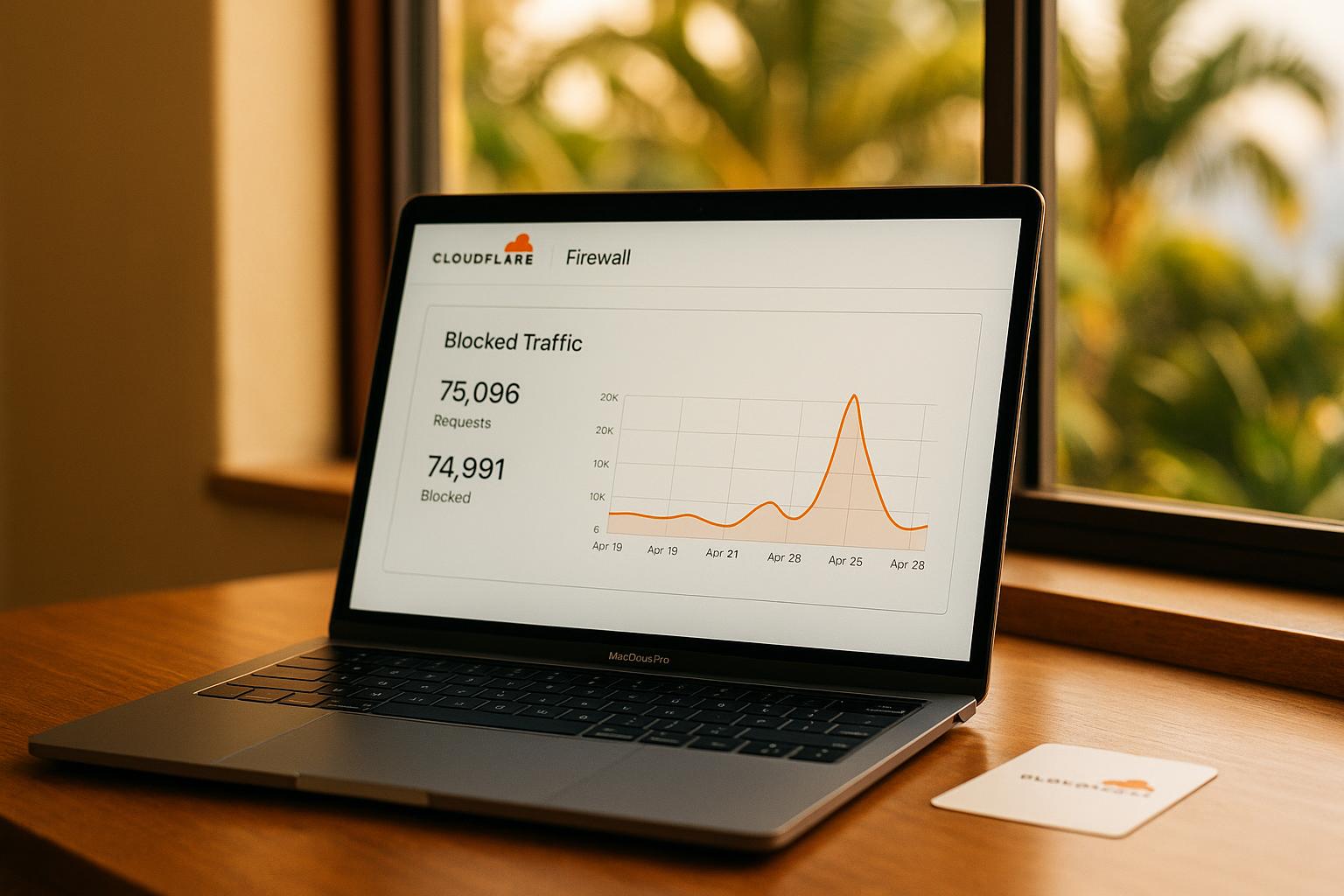
Your Site No Longer Has PHP Files. The Bots Don't Know That.
If you've converted your WordPress site to a modern static build, congratulations — you've already eliminated one of the biggest attack surfaces on the web. But automated scanners didn't get the memo. They're still out there probing your domain for wp-login.php, xmlrpc.php, config.php, and dozens of other PHP entry points, day and night, whether your site has those files or not.
The question is: what should you do with that traffic? Returning a 404 might feel like the correct technical answer, but it's actually the wrong strategic one. Here's why blocking at the Cloudflare firewall level is the smarter move.
Why a 404 Response Is the Wrong Tool Here
A 404 is designed for real users who followed a broken link. These PHP-probing bots are not real users. They're not search engines following legitimate links to your content. They're automated scripts working through lists of known WordPress vulnerability paths, hoping to find something exploitable.
Serving them a 404 does three things you don't want. It consumes server resources to generate and deliver a response. It confirms to the scanner that your domain is live and responding. And it gives the bot useful signal to keep trying.
Blocking at the firewall, on the other hand, gives the scanner nothing. No confirmation, no content, no path forward. That's exactly what you want.
403 Block vs. Full Drop: Which Should You Choose?
Cloudflare gives you two main options when you want to shut out unwanted traffic: a hard Block (which returns a 403 Forbidden response) or a Drop (which returns no response at all, causing the scanner to time out).
A Drop sounds appealing because it wastes the most time on the attacker's end. The catch is that dropped requests don't show up in your Cloudflare Firewall Events log, which makes auditing harder. If something goes wrong — or if you want to confirm your rule is working — you'll have a harder time seeing what's being caught.
For most small business sites, a Block with a 403 is the better choice. You get clean, logged firewall events you can actually review, and the result for the scanner is still a firm dead end.
Setting Up the Rule in Cloudflare WAF
Inside your Cloudflare dashboard, head to Security > WAF > Custom Rules and create a new rule. The core expression you want targets any request where the URL path ends in .php:
Field: URI Path
Operator: contains (or matches with regex)
Value:
.phpAction: Block
If you want to be more precise and catch paths like file.php?param=value, you can use a regex match: \.php(\?.*)?$. This covers both bare PHP files and PHP files with query strings appended, which is a common scanner pattern.
After saving the rule, check your Firewall Events to confirm hits are showing up as blocked and not just logged. It's easy to accidentally leave a new rule in log-only mode during setup, so take a minute to verify.
Other Paths Worth Adding to the Same Rule
While you're in there, it's worth thinking about what else scanners commonly probe on sites that used to run WordPress. Even on a fully static site, bots will still hammer these paths:
/wp-admin— WordPress admin panel probing/wp-content— Plugin, theme, and upload directory probing/wp-includes— Core WordPress file probing/.env— Environment file harvesting (increasingly common even on static sites)/.git— Git repository exposure attempts/phpmyadmin— Database admin panel probing/cgi-bin— Legacy CGI exploit attempts
Note that /xmlrpc.php and /wp-login.php are already covered by your .php rule, so no need to add those separately. The ones most worth adding as explicit OR conditions are /.env and /.git, since those don't end in .php and are increasingly targeted across all site types, not just WordPress installs.
You can stack these conditions in a single custom rule using OR logic. Any one of them being true triggers the block. Clean, efficient, and easy to audit.
One Thing to Double-Check Before You Save
If you're running any Cloudflare Workers or Pages Functions, confirm that none of your active routes pass through a URL path that contains .php. On a pure static site this is almost certainly a non-issue, but it takes thirty seconds to verify and could save you a confusing debugging session later.
You can also add a condition to exempt verified bots from the rule, something like not (cf.client.bot). Honestly though, no legitimate crawler should be requesting PHP files on a known static site. Adding that exception just introduces complexity without real benefit.
The Bigger Picture: What This Reflects About Website Security in Hawaii
This kind of firewall hygiene matters for any small business with a web presence on Oahu, whether you're running a shop in Kapolei, a service company in Kaneohe, or a restaurant in Kailua. Bots don't target specific businesses; they sweep entire IP ranges and domain lists automatically. Your site will get probed regardless of its size or traffic volume.
A well-configured Cloudflare WAF is one of the fastest wins in website security Hawaii small businesses can implement. And if your site is still running on WordPress with unmanaged plugins and no firewall rules in place, those accumulated vulnerabilities are exactly what these scanners are fishing for. A conversion to a modern static stack paired with proper firewall configuration removes most of that risk entirely.
Want help tightening up your site's security or figuring out whether a WordPress conversion makes sense for your business? Give us a call at (808) 470-7900 or schedule a free site review and we'll take a look at what you're working with.